
Tone Library
The Tone Library is a community preset hub built into Nitelite. Browse presets from other players, save your own, and follow creators whose tones you like.
Browsing is open to everyone. Saving, liking, commenting, and following need a free account — you’ll be prompted to sign up the first time, and whatever you were doing resumes right after.
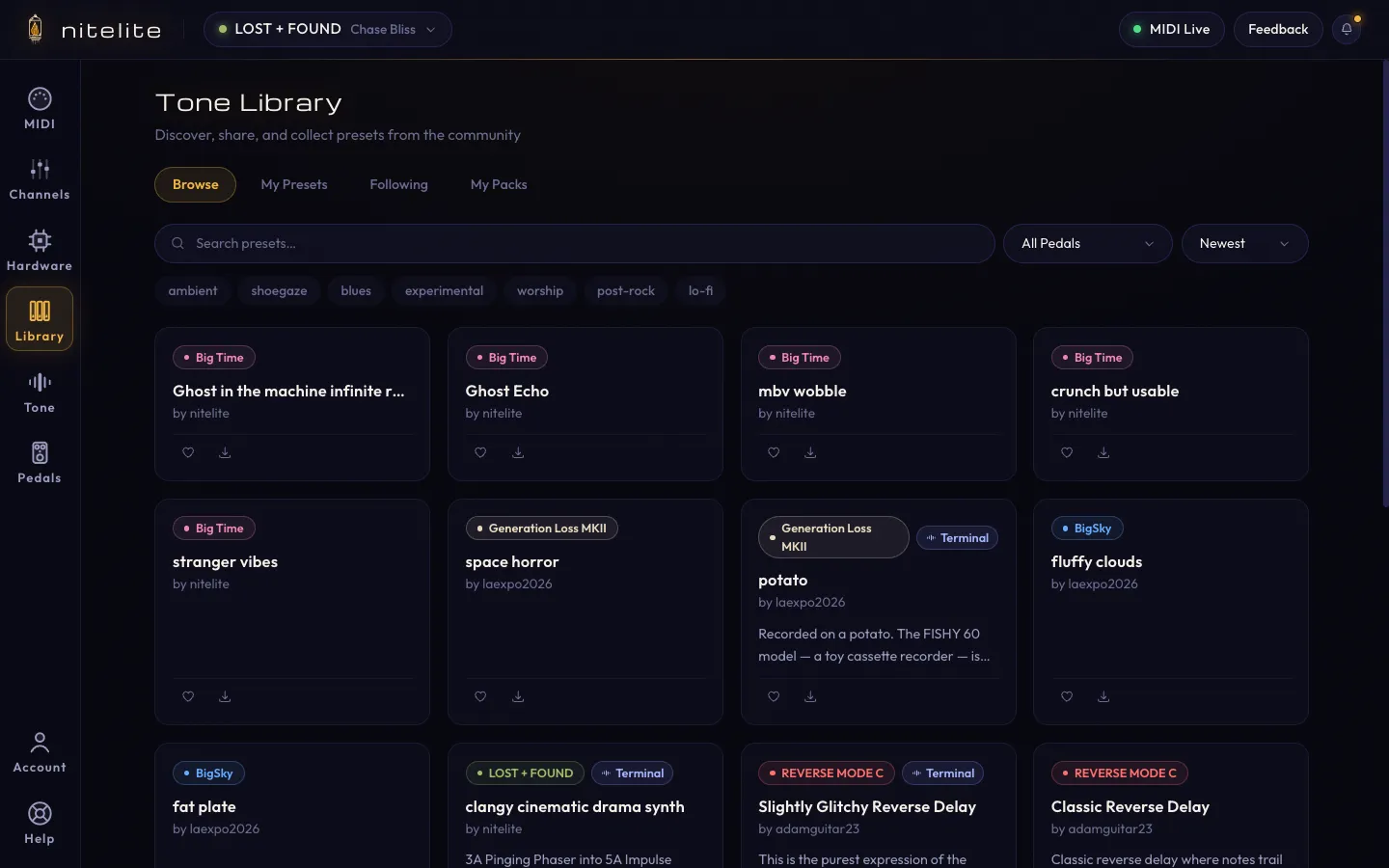
Browsing Presets
Section titled “Browsing Presets”Click Library in the left sidebar. The Browse tab shows publicly shared presets from the community:
- Search by name or description
- Filter by pedal, or click a genre tag (ambient, shoegaze, blues, …)
- Sort by newest or most downloaded
Each card shows which pedal the preset is for. A Terminal badge means the preset was generated with the AI Tone Terminal — those cards also carry the original AI prompt, so you can see exactly what was asked for.
Preset Detail
Section titled “Preset Detail”Click any preset to open it:
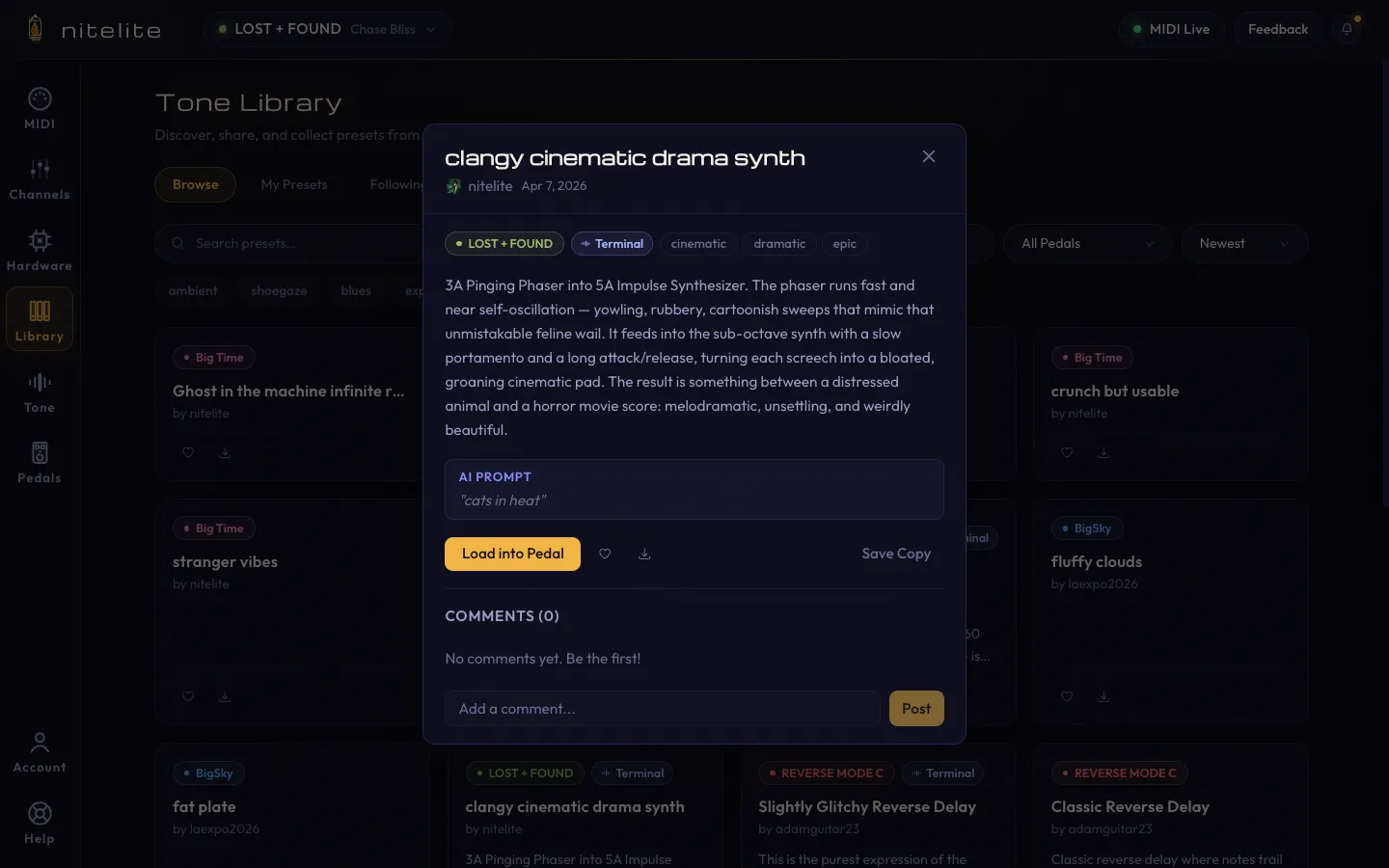
- Load into Pedal — applies every parameter to your active pedal and sends it all over MIDI. One click from someone else’s tone to your amp.
- Save Copy — duplicates the preset into your own My Presets, so you can tweak without touching the original.
- Like (heart) and download counts, plus comments below.
Saving Your Own Presets
Section titled “Saving Your Own Presets”Dial in a sound, then click Save in the pedal header:
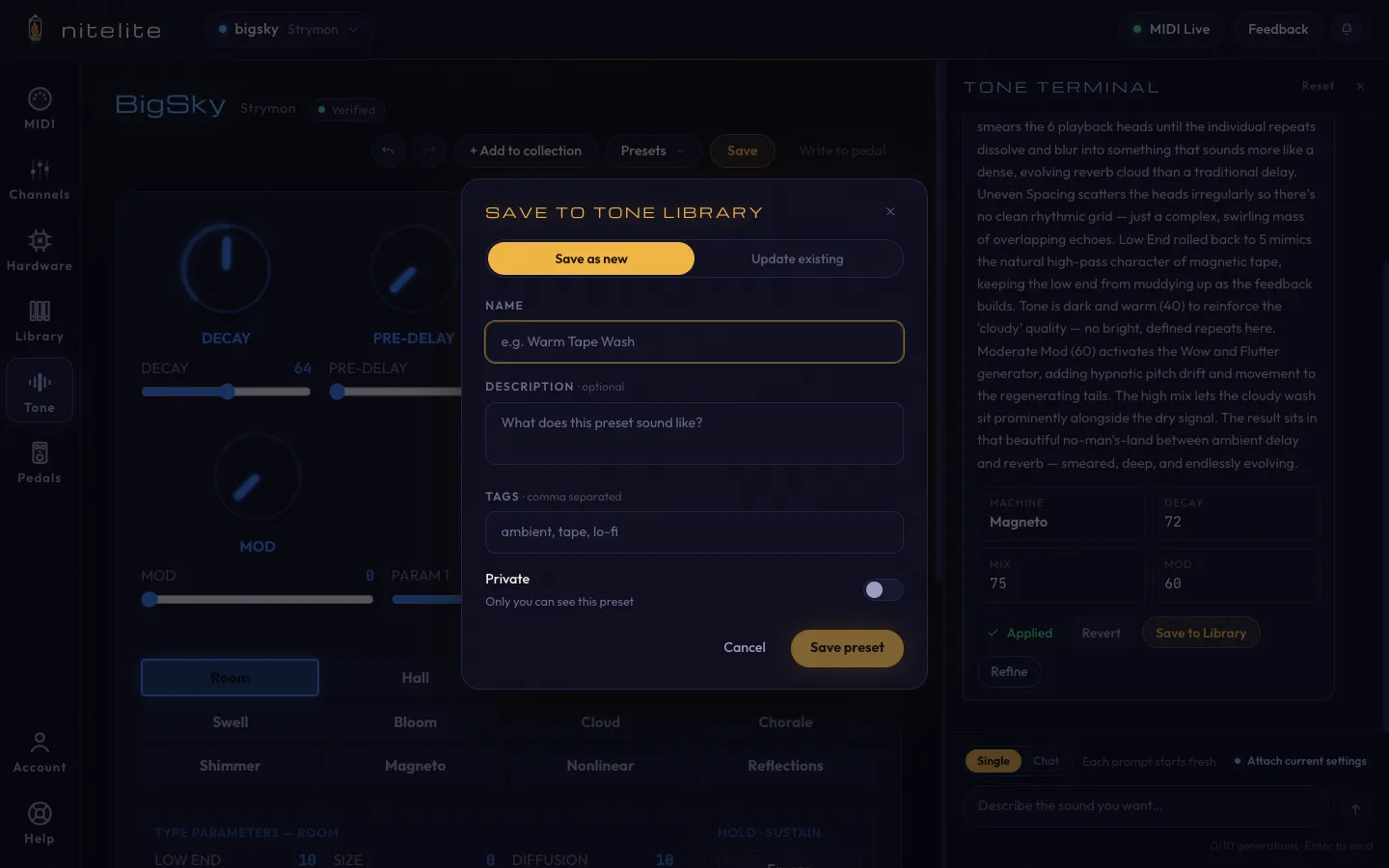
- Save as new or Update existing (to revise one of your earlier presets)
- Name, optional description, and comma-separated tags
- A Private toggle — flip it on to keep the preset to yourself; leave it off to share with the community
You can also save straight from the Tone Terminal with Save to Library after applying an AI-generated sound.
My Presets, Following, and My Packs
Section titled “My Presets, Following, and My Packs”- My Presets — everything you’ve created: edit details, update settings, or delete.
- Following — the latest presets from creators you follow.
- My Packs — group your presets into themed collections (by genre, gig, or pedal).
Want AI to create the starting point? Try the AI Tone Terminal, or follow the Save and Share Your First Preset tutorial.