
Tutorial: Run a Multi-Pedal Board
Goal: every MIDI pedal on your board controllable from one browser tab, with no pedal answering to another pedal’s messages.
You’ll need: two or more supported pedals and the right cabling — see Choosing Your MIDI Hardware for the multi-pedal options (daisy-chain via THRU, a thru box, or a multi-output interface).
-
Wire the MIDI
The common budget setup is a daisy chain: interface OUT → pedal 1 IN, pedal 1 THRU → pedal 2 IN, and so on. Same-brand TRS pedals can share one adapter box (a Chase Bliss MIDIbox or Meris MIDI I/O each feed up to four pedals).
Every pedal on a shared cable hears every message — channels are what keep them out of each other’s business.
-
Add all your pedals to the collection
Pedals → Edit collection, search, add. See Building Your Pedal Collection.
-
Give each pedal its own channel
Open the Channels panel. Assign channel 1 to the first pedal, 2 to the next, and so on. The panel warns you when two pedals share a channel:
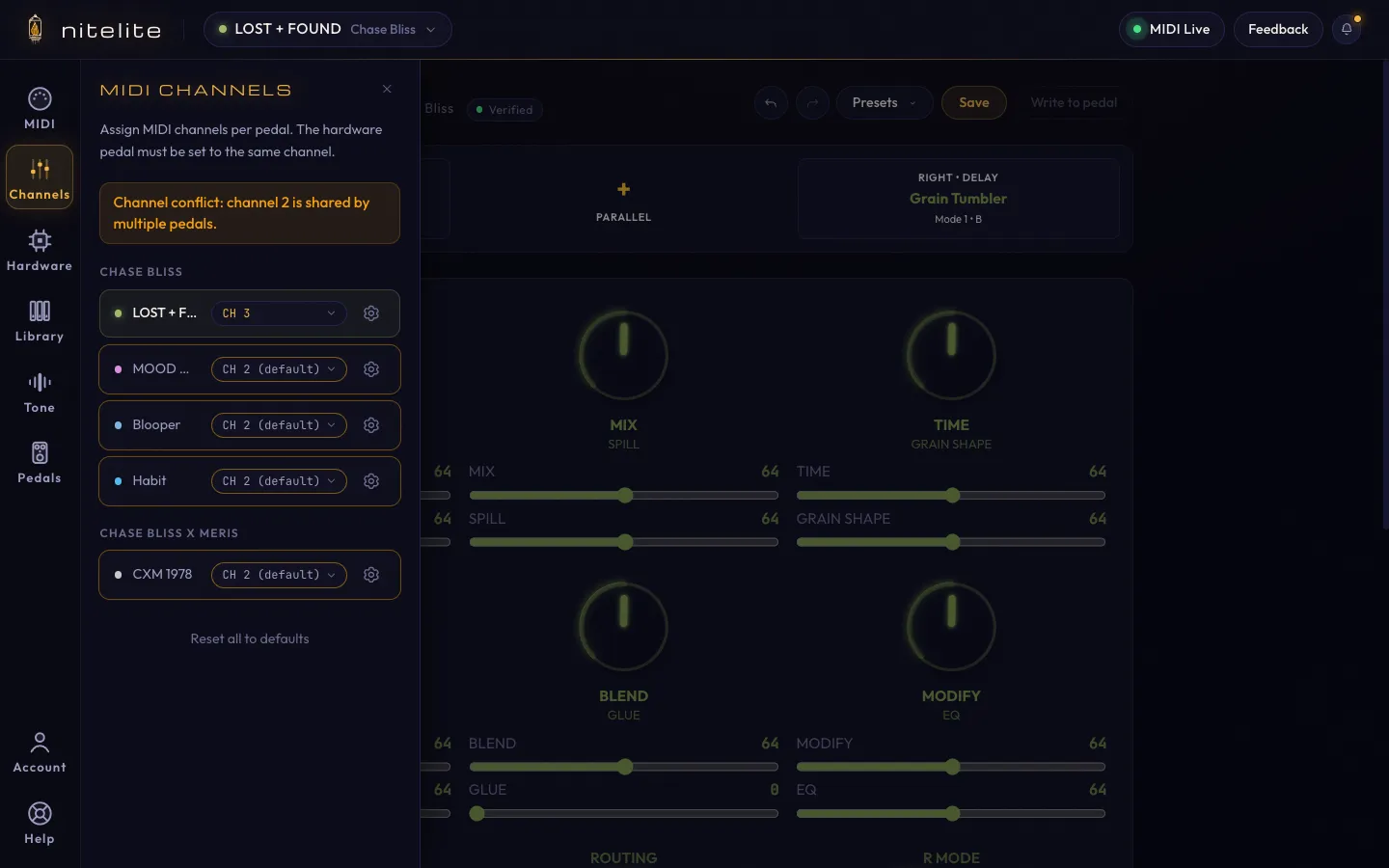
Chase Bliss pedals default to channel 2 — if you have several, they all ship listening on 2 and must be split up.
-
Set the matching channel on each physical pedal
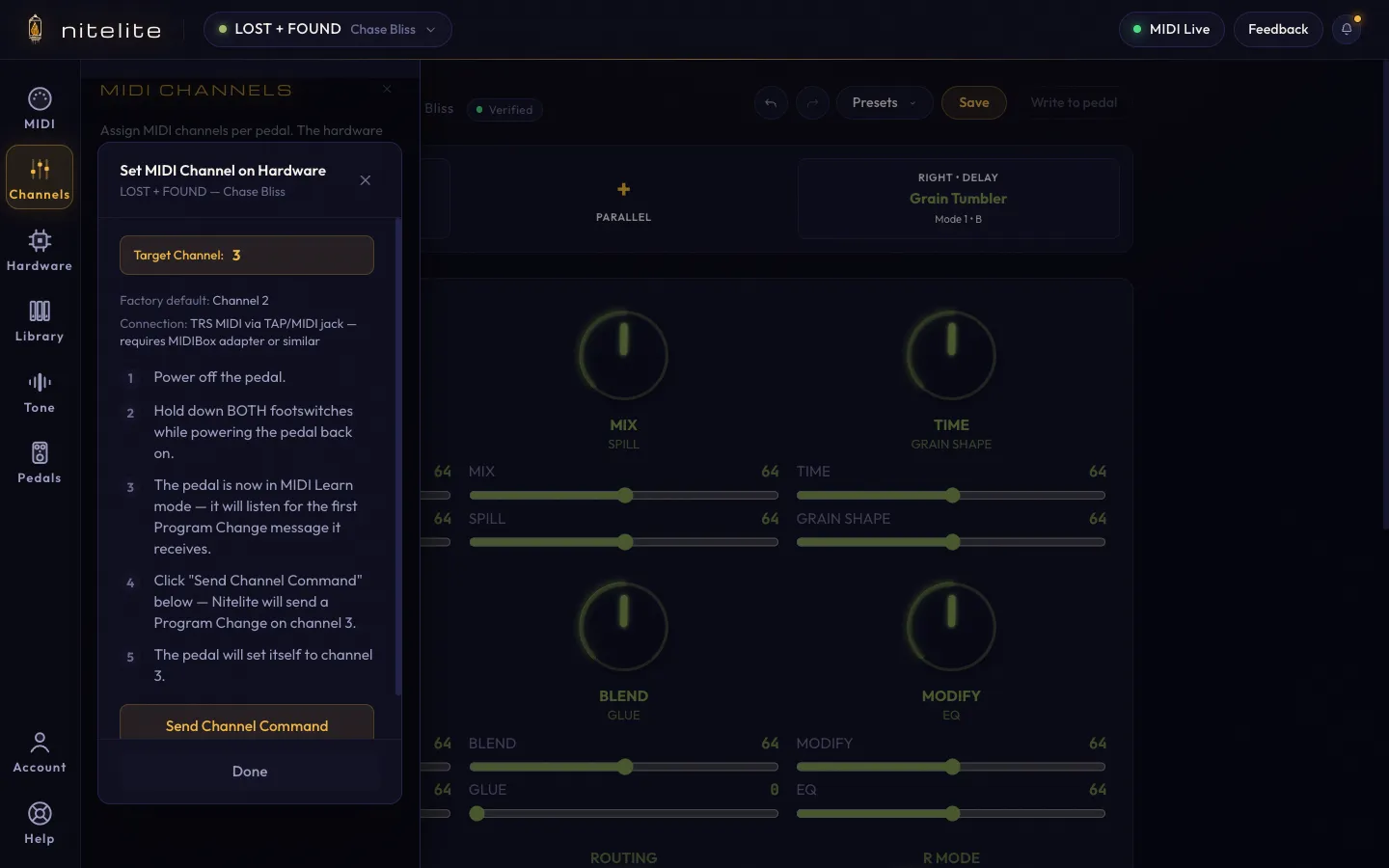
Click the gear next to each pedal for its model-specific instructions — and use Send Channel Command where offered to set the hardware channel straight from Nitelite:
-
Verify pedal by pedal
Select each pedal in the header dropdown and turn a knob. Only that pedal should respond. If the wrong pedal moves — or two move at once — you have a channel collision; back to step 3.
Troubleshooting a Chain
Section titled “Troubleshooting a Chain”- A pedal ignores you: its hardware channel doesn’t match Nitelite’s — step 4.
- Two pedals respond together: channel collision — step 3.
- Pedals late in the daisy chain are flaky: long THRU chains can degrade; move to a thru box.
- More in Troubleshooting.